Finance — Complete Invoice & Payment Management
Create invoices, record payments, and stay on top of what customers owe you.
This article is documented for Dominican Republic workflows, so its screenshots and tutorial steps should match that audience.
1What is the Finance Module?
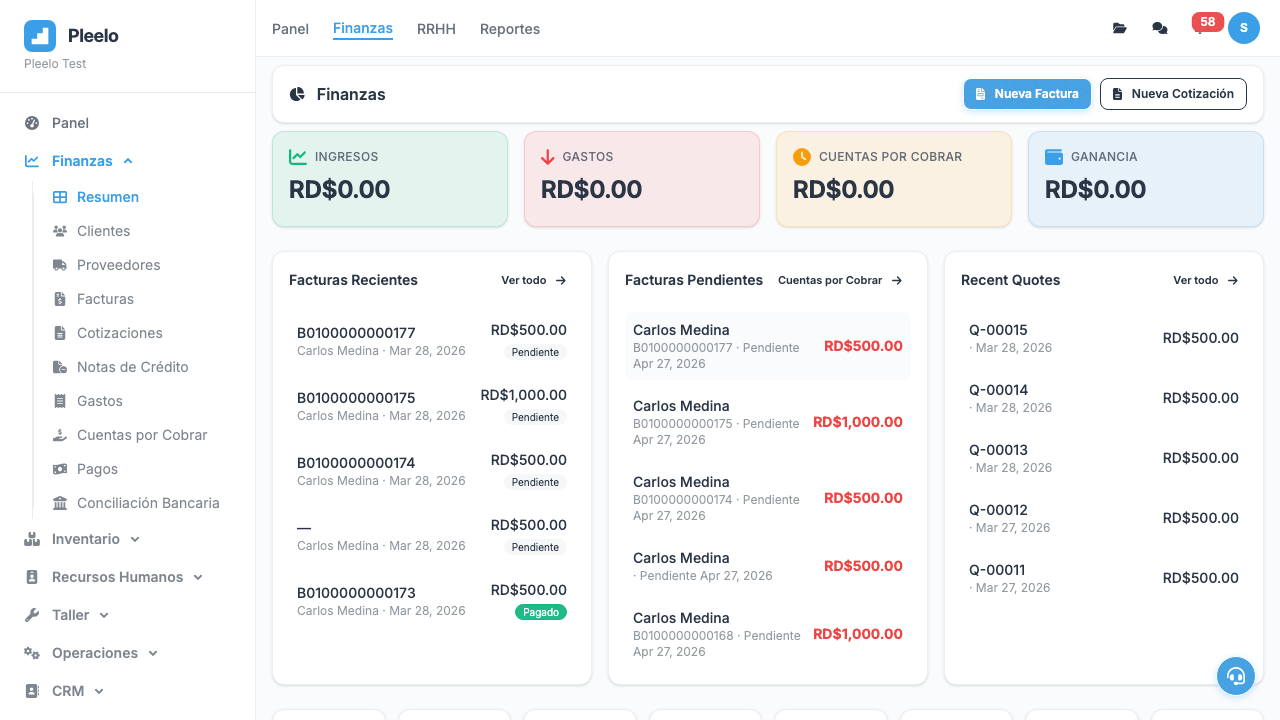
Use Finance to keep billing simple and cash flow visible.
What you can do here
- Create invoices and quotes
- Record customer payments
- Track open balances and overdue amounts
- Keep customer billing history in one place
Why customers use it
- You can send invoices faster
- You know what has been paid and what is still outstanding
- Your team spends less time piecing together financial activity from different tools
If you operate in the Dominican Republic, Pleelo also supports local fiscal workflows.
2Get Started in 5 Minutes
Step 1: Create a Customer
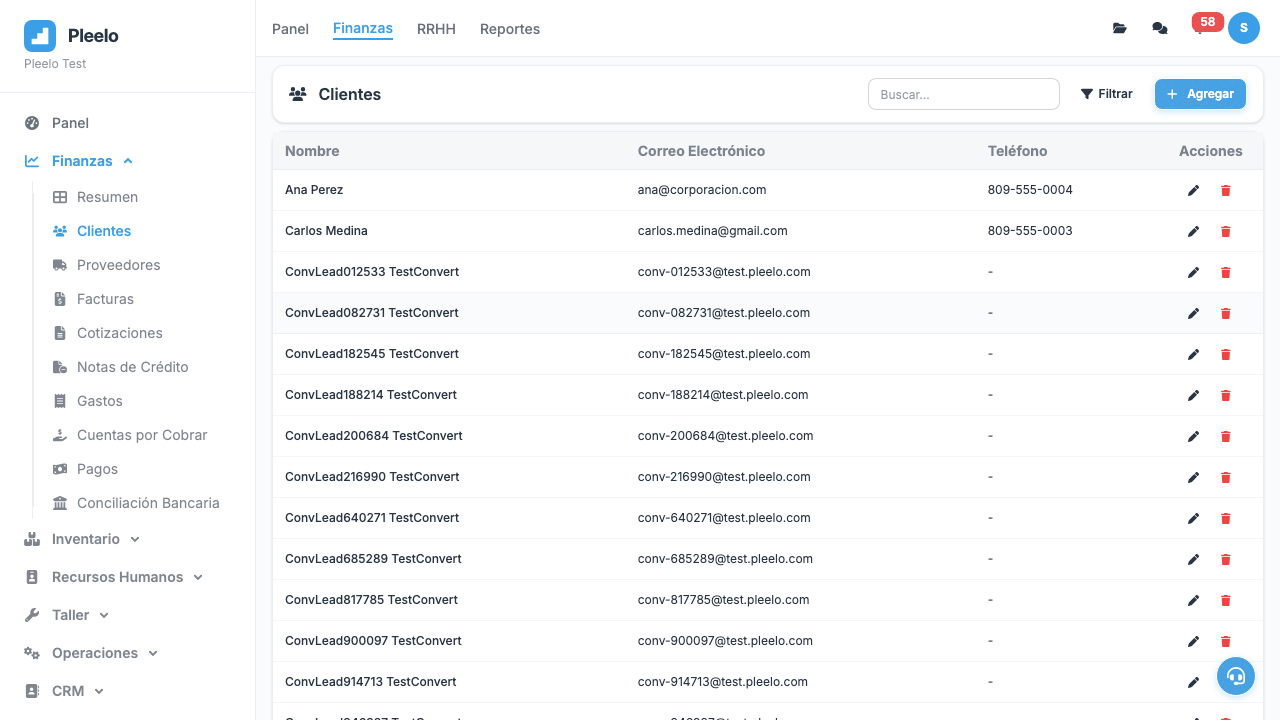
Go to Customers > New Customer. Enter:
- Company name
- RNC (if company) or ID (if individual)
- Email address
- Phone number (optional)
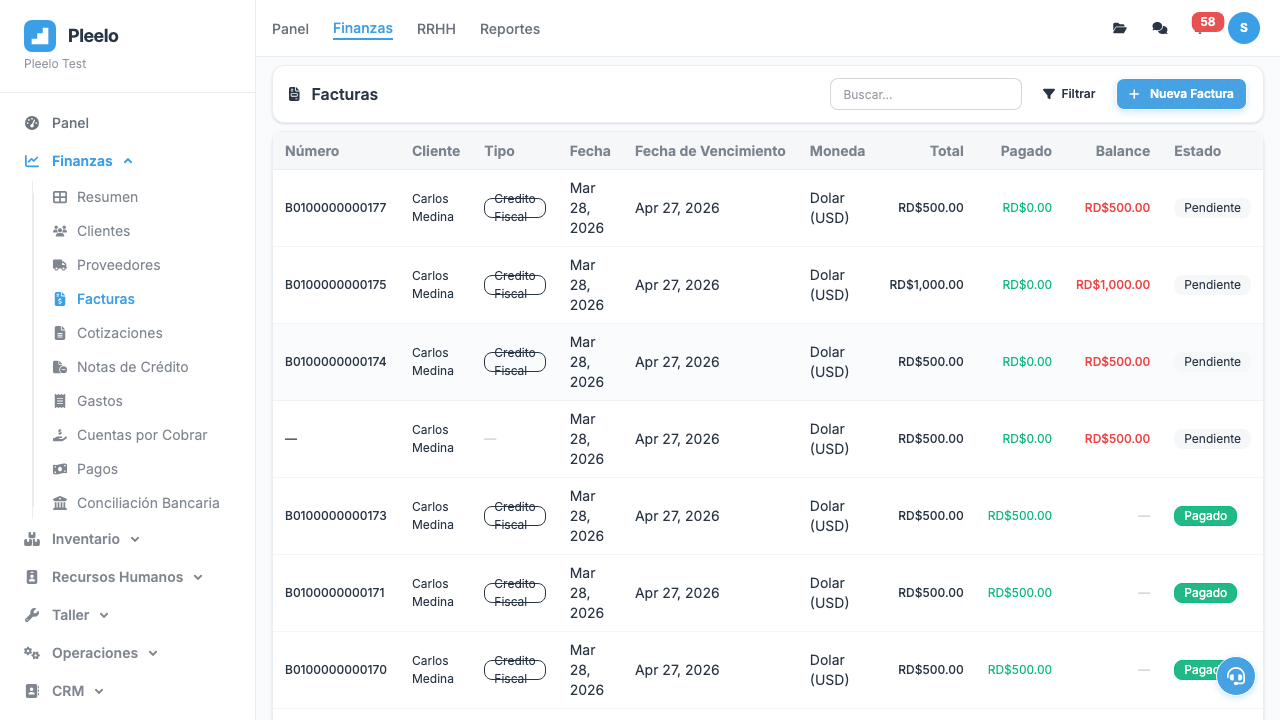
Step 2: Create Your First Invoice
Go to Invoices > New Invoice
- Select the customer
- Add products (e.g.: "Consulting", 1 unit, RD$5,000)
- System automatically calculates ITBIS (18%)
- Click Save
Step 3: Send to Customer
Download the invoice as PDF and email it. Or use WhatsApp: click the Share button.
Step 4: Record Payment
When you receive the money:
- Open the invoice
- Click Add Payment
- Select: Cash, Bank, Check, etc.
- Enter the amount
- Click Save
The invoice will automatically show PAID. ✓
3Creating Perfect Invoices
What Is an Invoice?
A legal document that states: "I sold this to this customer for this price on this date."
In Pleelo, an invoice automatically includes:
- NCF (Fiscal Voucher Number) — Pleelo generates this automatically
- Your information — name, RNC, address
- Customer information — name, RNC, ID
- Products — what you sold, quantity, price
- ITBIS — sales tax (18% by default)
- Total — everything added up
Invoice Types
- 01 - Credit Fiscal Invoice: The normal one. Customer can deduct ITBIS if they're a company.
- 02 - Consumer Invoice: Customer is an individual. Cannot deduct taxes.
- 14 - Export Sales Invoice: If you sell abroad.
Tips
- Customer RNC: If you don't enter the RNC, DGII will reject it. Ask the customer to confirm it.
- Clear Description: Don't write "Service". Write "5-hour consulting" or "Hitachi motor repair".
- Correct Quantity: Verify before saving. Cannot change after creation.
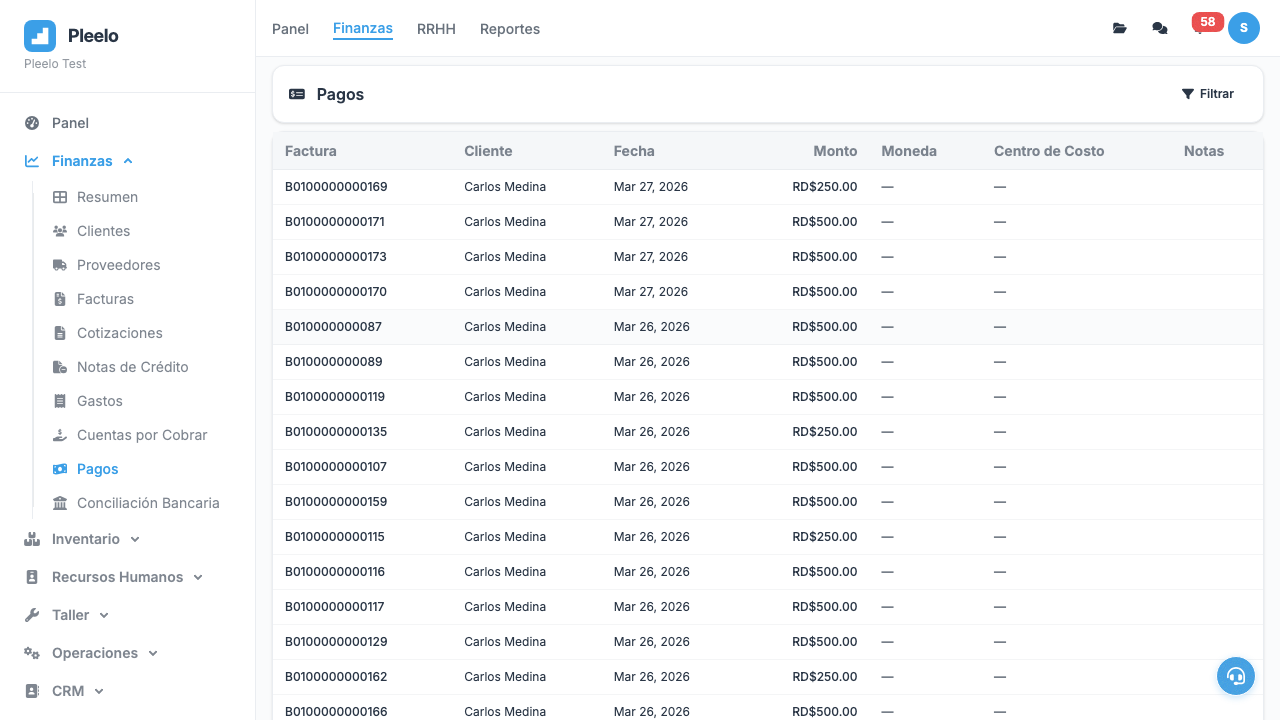
4Recording Payments
Payment Methods Available
- Cash: Money in hand
- Bank: Transfer, deposit
- Check: Post-dated check
- Credit Card: POS terminal
- Other: Voucher, promise to pay
Why Record Payments?
- Know Who Owes You: If money is missing, find unpaid invoices.
- Correct Reports: DGII reports only include paid invoices.
- Tax Deductions: If paid by check and cleared later, record both dates.
Step by Step
- Open the invoice
- Click + Add Payment
- Select payment method
- Enter amount (can be partial)
- Select date (defaults to today)
- Click Save
If amount is less than total, status shows PARTIALLY PAID. If equal to total, status shows PAID.
5Quotes (Estimates)
What Is a Quote?
A document that says: "If you buy this, it will cost this." Customer can accept or reject.
It's like a "Budget" or "Price Proposal".
Difference: Quote vs. Invoice
- Quote: Customer hasn't purchased yet. No NCF. Just information.
- Invoice: Customer has purchased. Has NCF. Is a legal document.
How to Convert Quote to Invoice
- Open the quote
- Click Convert to Invoice
- Pleelo automatically creates invoice with same products
- If prices changed, edit invoice before sending
When to Use Quote
- Customer asks: "How much does it cost?"
- You propose a project: "I quote you RD$50,000"
- Customer is unsure: Send a quote to help them decide
610 Golden Tips for Perfect Invoicing
-
Customer RNC is mandatory: Without it, DGII rejects the invoice. Ask.
-
Keep copies: PDF, paper, everything. DGII may audit.
-
Correct date: Use the real sale date, not tomorrow or 3 months ago.
-
Clear description: "Consulting service" is good. "Stuff" is bad.
-
Prices in RD$: Pleelo uses Dominican pesos by default.
-
Review before saving: Once saved, you can't change the NCF.
-
Customer contact: Phone and email to send the invoice.
-
Recurring products: If you sell the same thing monthly, use Templates.
-
Credit Notes: If you made a mistake, DON'T delete the invoice. Create a Credit Note.
-
Monthly reports: Generate 607 each month and save it. DGII will ask for it.
Video Tutorials
Create an Invoice
Learn how to create a complete invoice with product lines, discounts, and taxes.
1:00Record a Payment
How to record partial or full payments on an existing invoice.
0:45Convert Quote to Invoice
Convert an approved quote into an invoice with all data pre-filled.
0:50Visual guide
Reference screenshots from the product and guided flows captured for documentation.