Authentication — Secure Login
Create your account, sign in securely, and recover access when you need it.
This article uses a cross-country workflow. Even so, screenshots and tutorial videos can vary by country and language profile.
1How Is Pleelo Secure?
Use Pleelo with confidence.
When you sign in, your account is protected with your email address and password, and your session stays secure while you work.
What this means for you
- Your account is personal to you
- Your password protects access to your workspace
- You can reset access if you forget your password
- Your data is encrypted in transit
If you are setting up Pleelo for the first time, start by creating your account and then follow the onboarding steps after sign-in.
2Logging Into Your Account
First Access
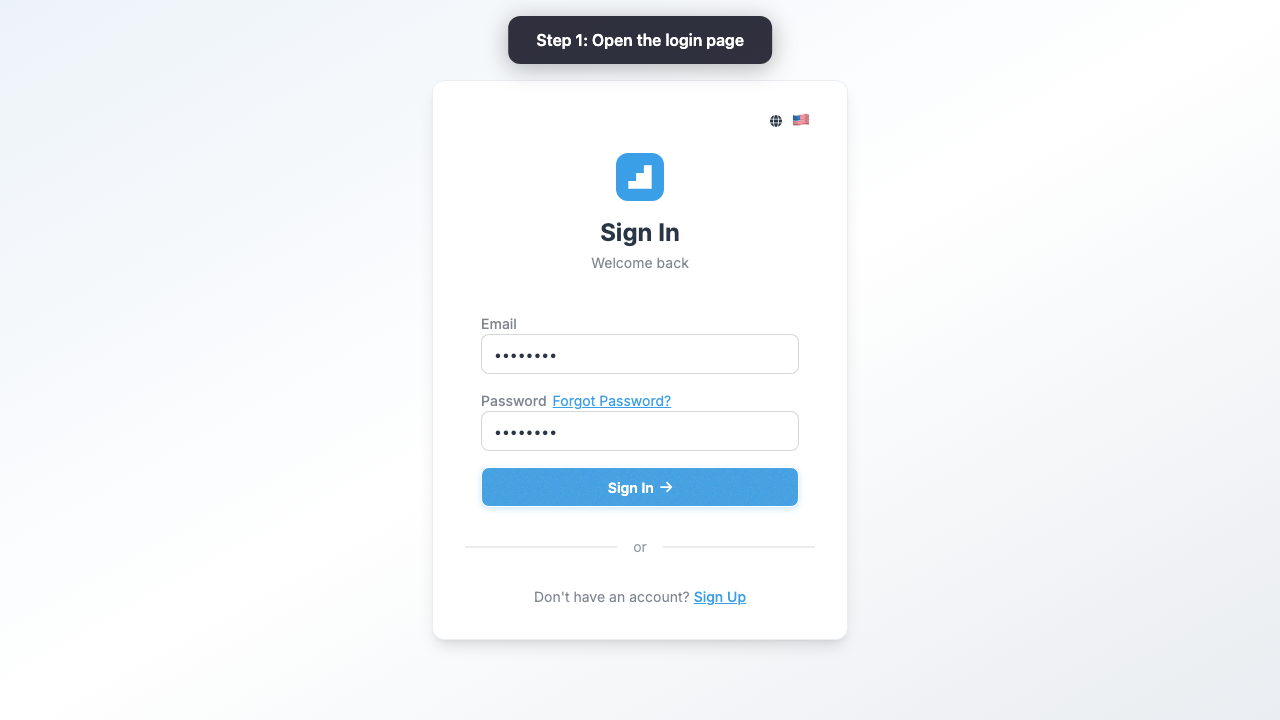
- Go to pleelo.com
- Click Sign In
- Enter your email
- Enter your password
- Click Sign In
Tip: Check "Remember me" to avoid typing email every time.
Forgot Password?
- On login page, click Forgot Password?
- Enter your email
- You'll receive email with reset link
- Click link
- Enter new password
- Try logging in again
Important: Link expires in 24 hours.
3Organizations and Permissions
What Is an Organization?
Your company, business, or project in Pleelo.
Example:
- User: John (me)
- Organizations I manage:
- "John's Bakery"
- "Express Mechanic Shop"
- "JM Consulting"
One User, Multiple Businesses
One user (John) can manage several organizations. In each one has their own data, invoices, employees, etc.
Switch Organization
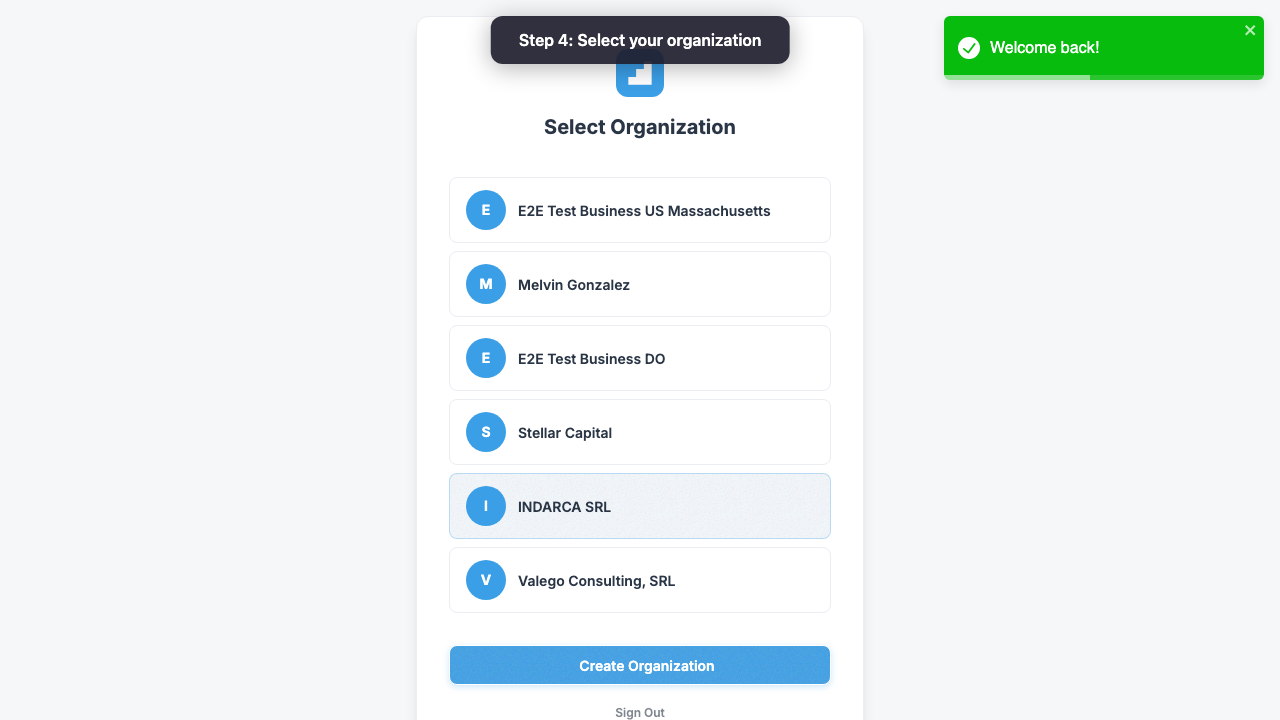
- Top left, find current organization name
- Click it
- Select another from list
- System loads that organization's data
Inviting Users
To add more people to your organization:
- Go to Settings > Users
- Click Invite User
- Enter email
- Select role (Admin, Accountant, Salesperson, etc.)
- System sends invitation
When they accept, they have access to your data.
Video Tutorials
Login Flow
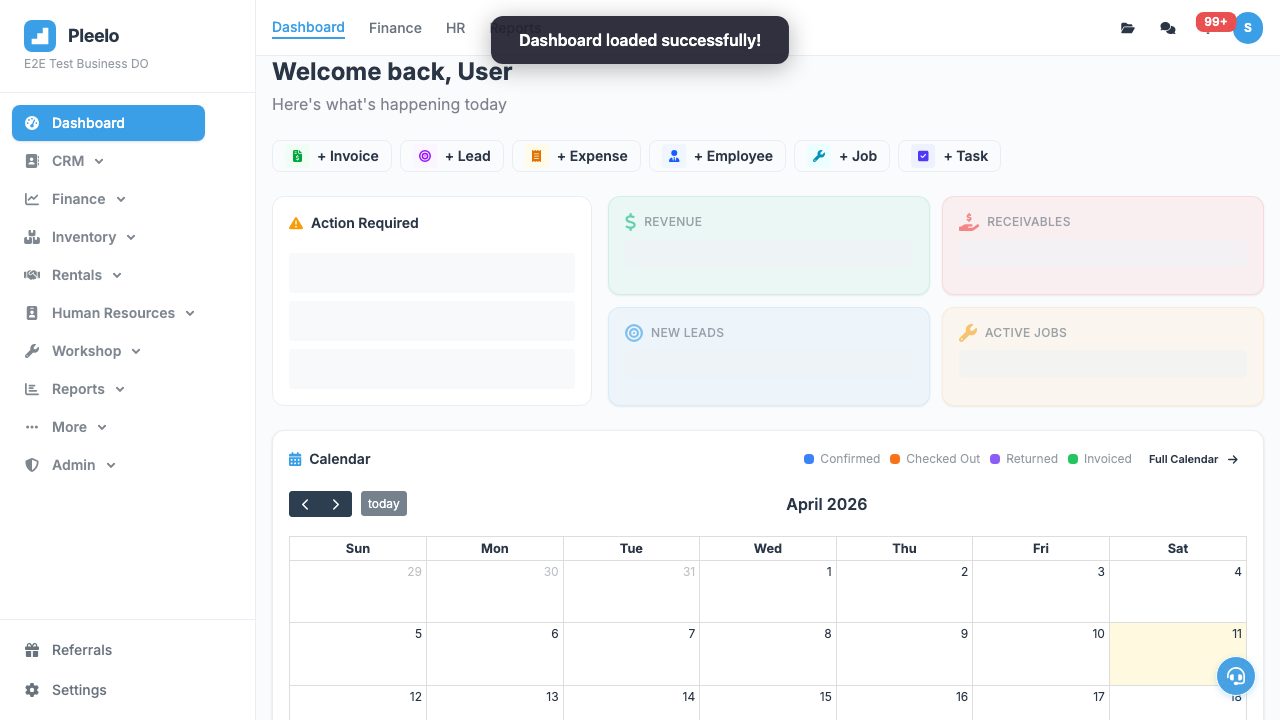
How to log in and select your organization.
0:30Visual guide
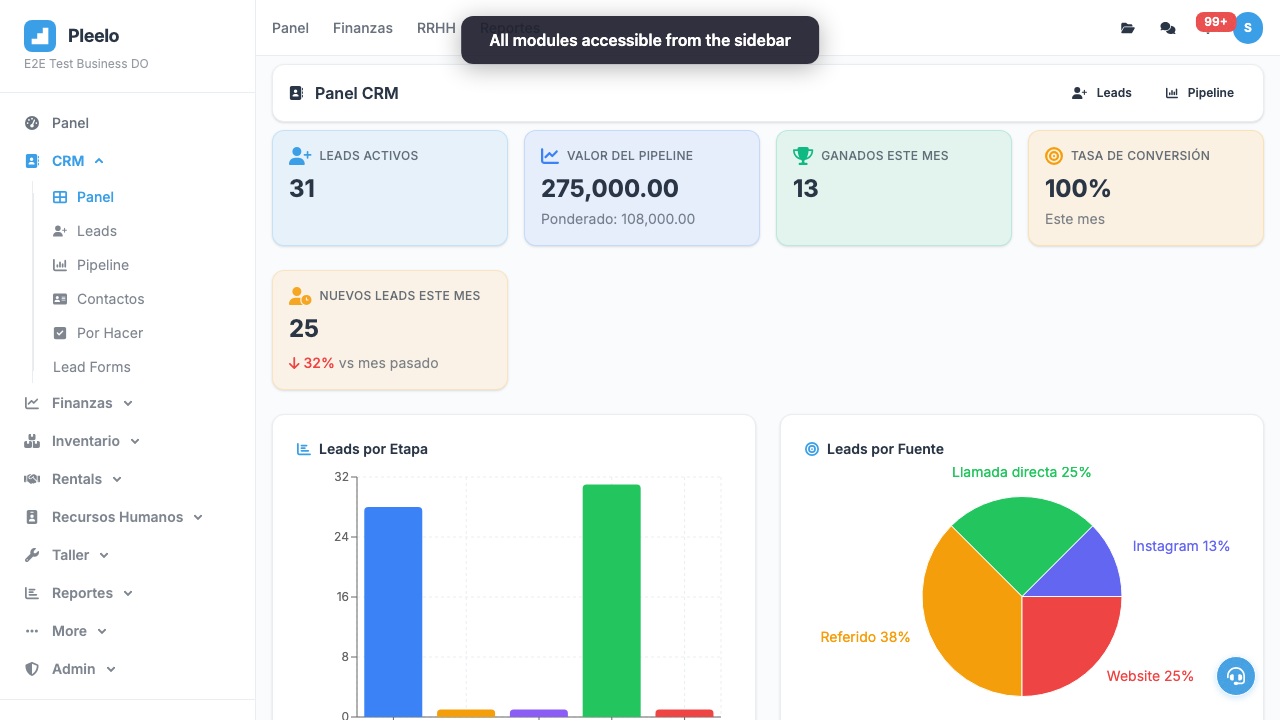
Reference screenshots from the product and guided flows captured for documentation.